
I remember I had some dramas getting the OfficeExtend APs initially set up, so here are the firewall rules you need to get the Cisco OfficeExtend access points (OEAP) working. The setup assumes you have a DMZ controller which will have mobility anchors into the internal or “Inside” controller.
Internet -> “DMZ” WLC
UDP 5246/5247 (for OEAP communication)
DMZ Controller <-> Inside Controller:
UDP 16666/16667 Bidirectional to “Inside” WLC and “DMZ” WLC
IP Protocol 97 Bidirectional to “Inside” WLC and “DMZ” WLC
DMZ Controller -> Inside Controller:
UDP 1812/1813 to RADIUS Server
Inside Network -> DMZ Controller:
TCP 80/443 (for http/https access)
TCP 22 (for SSH access)
If you have a Wireless Control System server (WCS) or Cisco NCS Prime -> DMZ Controller:
UDP 69 (for TFTP)
UDP 161 (for SNMP)
I spent some time a year or so back getting it going and it has been a good solution for extending the corporate wireless lans to wherever it is required. Obviously, security should be of concern so at least ensure you are securing the WLANs using certificates, RADIUS and AD authentication (WPA2 Enterprise) at minimum.
In my case the 602 model AP can provide 2 WLANs as well as a “Remote LAN” connection which I use to plug in a Cisco IP phone for those that want a hard phone coupled with the AP. Be careful of the remote lan port – it essentially is a port that is tunneled straight onto your inside network (which is why the phone works).
Google Blake Krone’s 602 AP review for more detail on the OEAP setup – he helped me out a lot and could not have done it without his assistance….thanks Blake!
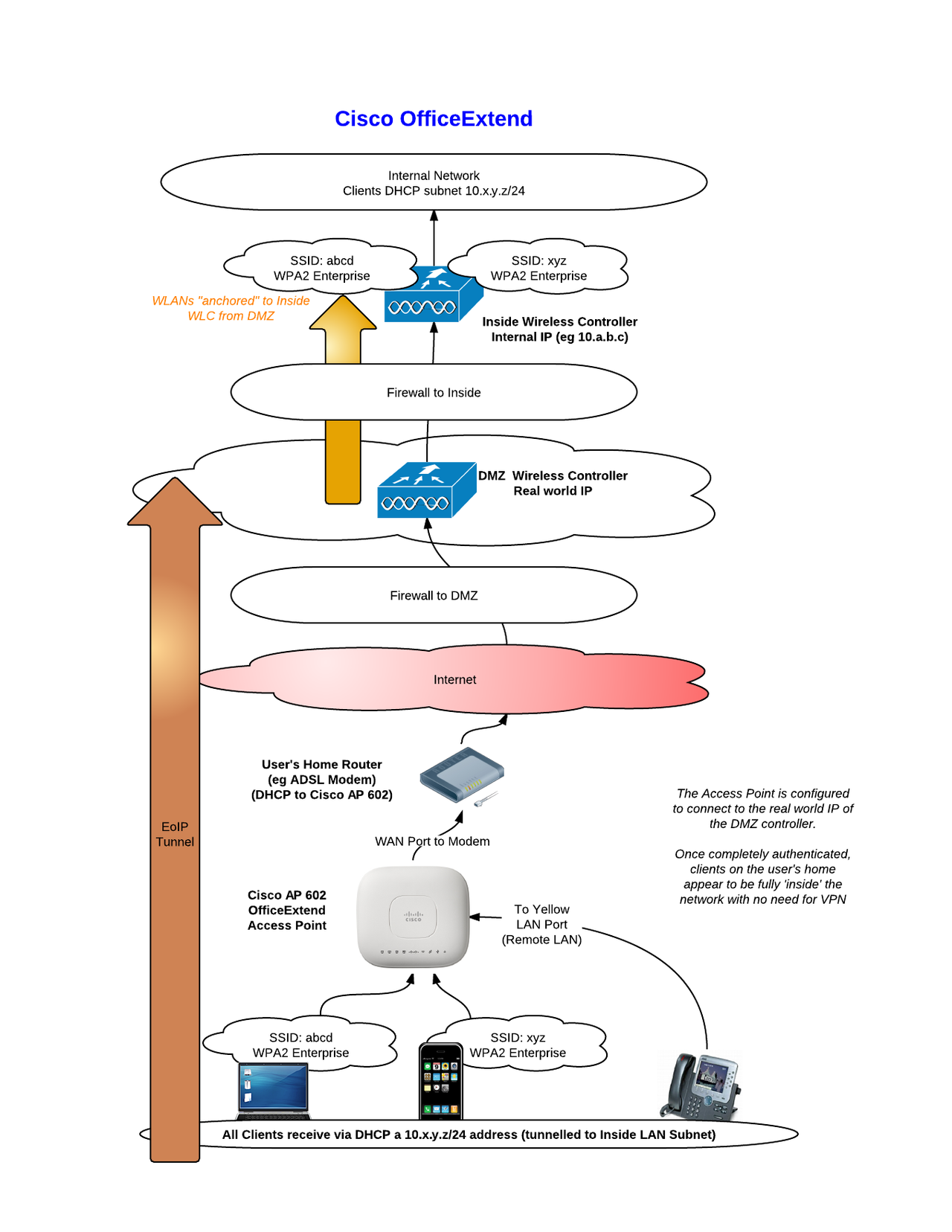
OfficeExtend setup – clear as mud now? :)
 Invisible Infrastructure